
How To Create A "Floating" Table Of Contents
It's handy to have a table of contents at the beginning of a PDF - especially when you're dealing with a lengthy document. A table of contents containing links to the pages is even better.
The issue is that every time you want to view the table of contents again you have to navigate back to it in the PDF. What if you could have a "floating" table of contents that you could access no matter which page you were on? There's a way to do this by combining three different javascript functions:
- app.addToolButton();
- app.popUpMenu();
- this.pageNum; or setFocus();
The popUpMenu function displays a vertical list of items stacked on top of each other just like the toobar menu items in Adobe Acrobat and Reader.
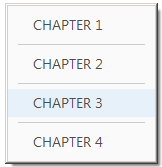
The "-"s above are optional separators between the menu items. Because we want the popup menu to travel with the PDF we can't use the Adobe menu. Instead we can add a toolbar button and activate the popup menu from the toolbar button like this:
cName:"MyToolButton", /*unique toolbutton name*/
cExec:"TofC();", /*function to execute*/
cEnable:"event.rc=(app.doc!=null)", /*enabled when document is open (redundant)*/
cLabel:"Table of Contents", /*toolbutton label*/
cTooltext:"Table of Contents" /*tool tip (mouse over)*/
});
The cExec above is the function that will execute when the toolbar button is activated. As well as a label and mouse over tool tip, you can also add an icon. This is too complicated for this article but we've created an automation tool that adds an icon to a toolbar button and writes the script for you.
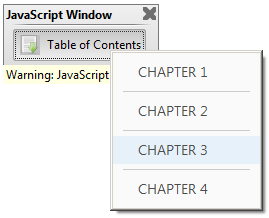
Even though the fields are hidden, the focus will still go to that area of the page. The following is the entire document level script, assuming you have hidden text fields named "CHAPTER 1", "CHAPTER 2", "CHAPTER 3", and "CHAPTER 4":
{
var rtn=app.popUpMenu("CHAPTER 1", "-", "CHAPTER 2", "-", "CHAPTER 3", "-", "CHAPTER 4");
if(rtn)
{
this.getField(rtn).setFocus();
}
}
app.addToolButton({
cName:"MyToolButton",
cExec:"TofC();",
cEnable:"event.rc=(app.doc!=null)",
cLabel:"Table of Contents",
cTooltext:"Table of Contents"});
This script is not that complicated but it can become extremely labor intensive, especially when applying it to lengthy documents. We created an automation tool that adds this floating table of contents to a document by simply highlighting words with the annotation highlighter:
This power tool can also be used to automate bookmark creation.