
What To Do When Your Text Commenting Tool Doesn't Work In Reader or Acrobat
"The Comments Annotations (Typewritten Text) is always locked; I can't write anything in the box, it cannot be resized, etc. I click once and the box appears and the Comments List shows it as being added & locked with the padlock icon. It cannot be deleted either, despite it having no text."
The above quote is part of a question I answered 517 days ago on AcrobatUsers.com. I took a guess at what could have gone wrong and my answer was voted as the best answer. I didn't think anything more about it until somebody else commented on the very same question today. When I read through additional comments posted between then and now I realized that this is a common, and very frustrating problem. In fact, one of the respondents was advised to uninstall and reinstall Acrobat to fix it.
My original theory was that somehow the tool had been locked and the default properties were accidentally set to match the locked state. If the default is locked the tool ceases to function except for adding empty and locked Typewriter tool annotations. Once an annotation is locked it can't be moved, resized, deleted, or changed in any way. With this particular tool the "locked" check box in the properties window is perpetually disabled, so it can't be unlocked manually, nor can it be locked in the first place without using javascript.
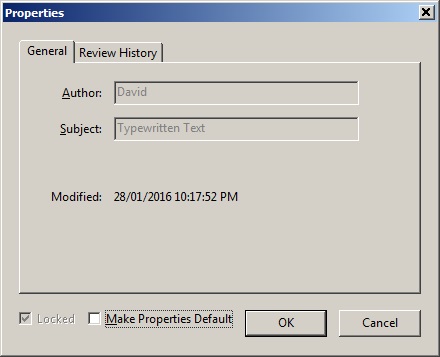
How it came to be locked for these frustrated users remains a mystery. It could be a glitch in the software or it could simply be that they received a PDF with a locked annotation and accidentally (or purposely without realizing what would happen) selected "Make Current Properties Default".
I attempted to recreate this scenario to see what would happen. Sure enough, if the tool is locked and the default properties are set to the locked state, there doesn't seem to be any way to change this setting manually. With Acrobat we can select one of these annotations and run a simple javascript in the console to unlock the annotation. Then we can "Make Current Properties Default" and voila. Problem solved. Here are the steps.
- Create an annotation using the text tool.
- Select the annotation. With these empty annotations, it will be much easier to select it in the comments panel.
- Copy this script: this.selectedAnnots[0].lock=false;
- Press ctrl + j to open the console.
- Paste the script and press ctrl + Enter (the padlock in the comments panel should disappear for that annotation).
- Right-click the annotation and select "Make Current Properties Default".
That's it. You should be good to go - although not so easy with Reader as there is no command to open the console. That's why we developed a tool that you can download here for free and install in Reader so you can open the console.